
View a video on the recommended settings and how to navigate the authoring system.
View the transcript.
Amendment Authoring (Keystone) enables planning authorities to draft, amend and publish ordinances to planning schemes.
To assist you with editing or publishing ordinance changes, we have created the following videos.
For more comprehensive guidance, please refer to the ATS online training modules which cover many tasks in greater depth.
View a video on the recommended settings and how to navigate the authoring system.
View the transcript.
View a video on how to access the in-app guidance for help with using the authoring system.
View the transcript.
View the video on how to create or update a table in the authoring system.
View the transcript.
View a video on how to insert, replace or format an image in content using the authoring system.
View the transcript.
View a video on how to format a bulleted list in content using the authoring system.
View the transcript.
View a video on how to insert and format content that has been copied from a Word document.
View the transcript.
View a video on how to change the orientation layout of content being edited in the authoring system.
View the transcript.
View a video on how to apply the styling guide from Ministerial Direction-The Form and Content of Planning Schemes when editing content in the authoring system.
View the transcript.
View a video on how to insert a page break.
View a video on how to move and delete a paragraph.
View a video on how to review content and add comments
The Amendment Tracking System, in particular Amendment Authoring (Keystone) is used to author proposed changes to selected ordinance (content).
During the process of authoring content, every time you edit and save (confirm) changes, a new version of the content is saved. You can view past saved versions, and compare selected versions.
The following shows how you can access saved versions, show differences, view tracked changes on screen and choose to merge changes into content. It assumes that you have basic knowledge of navigating the system.
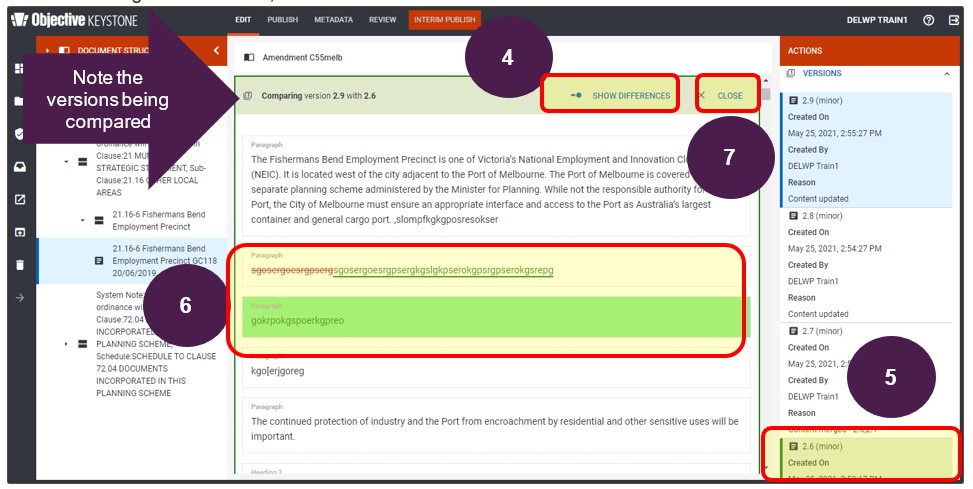
Users can choose to view differences between saved versions on screen so long as they are not editing the content. The differences will show in colours as follows;
1. With the amendment document open, select the content where you would like to see the changes.
2. Select ‘Versions’ from within the ACTIONS menu to expand the listing to see all the saved versions for the content selected.
3. Select the version that you want to compare from. In the below example the user has selected to compare from the latest saved version 2.9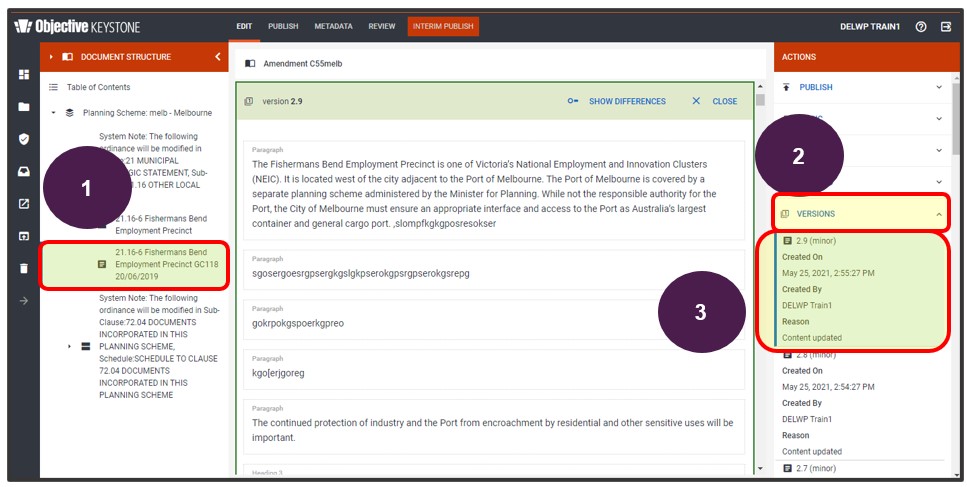
4. Select SHOW DIFFERENCES.
5. Scroll through the available versions and select the version to compare to. In the below example, version 2.6 has been selected.
The screen showing the differences may take some time to load.
6. Scroll through the content to see differences on screen.
7. To finish viewing the differences, select CLOSE.
You can use track change functionality in addition to merge mode whilst editing content. To access this feature, the content must be opened in editing mode. You will need to determine which versions you want to compare to and then step through the noted changes to either accept or reject the change.
This functionality can be extremely useful after a ‘Refresh Amendment' workflow has been applied to the amendment document and where the content has been refreshed with a copy of the most recent ordinance from the planning scheme, overwriting previous changes made to content.
If using this function after a ‘Refresh Amendment’ workflow has been applied to your work, you should not be rejecting changes created by a recent gazettal.
8. With the amendment document open, select the content where you would like to see the changes.
9. Select EDIT to open the content to edit.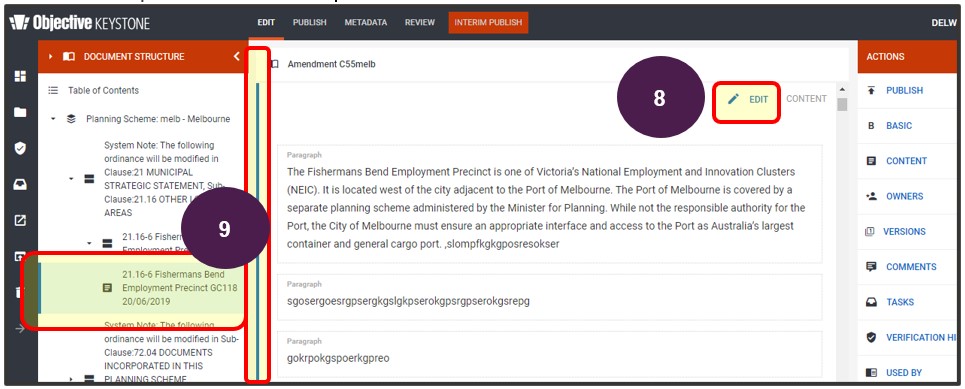
10. Select TRACK CHANGES to load the track change view. Note that this may take some time to load, especially where there are large sections of content and tables.
11. Select the version to compare to. In this example, version 2.3 is selected. The differences on screen are showing the changes that have been made since version 2.1.
12. Select MERGE MODE to see the functionality located from the editor toolbar or just above the content you are working on.
13. After selecting the merge option, the merge panel will appear under the ACTIONS menu where you can use the arrows to step through the changes.
14. The blue marker shows the changed item.
15. The ‘Change Detail’ field advises what change occurred where the blue marker is located.
16. Select the option of ACCEPT to agree with the change noted or to REJECT if the change is not wanted.
17. You can step through each change noted or choose to ACCEPT ALL OUTSTANDING or REJECT ALL OUTSTANDING.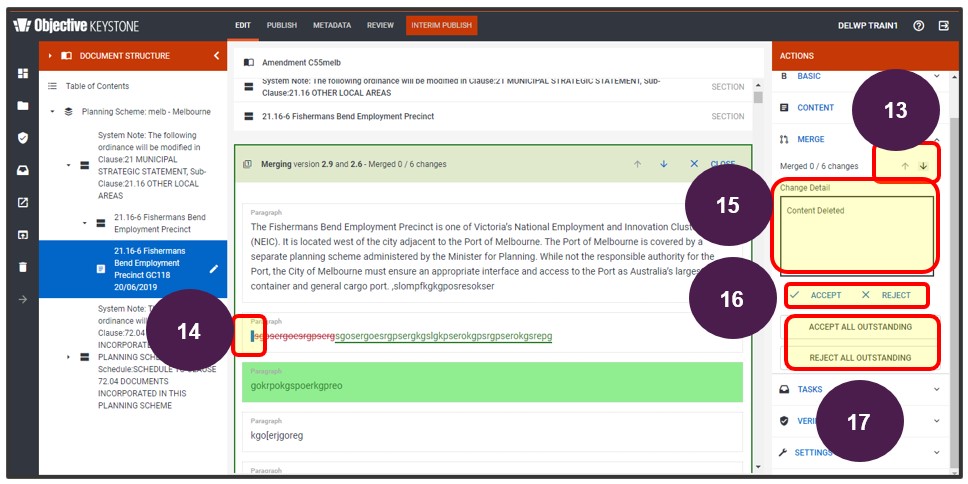
18. In the below example, the first noted change was accepted and the second rejected which removed all text from the paragraph.
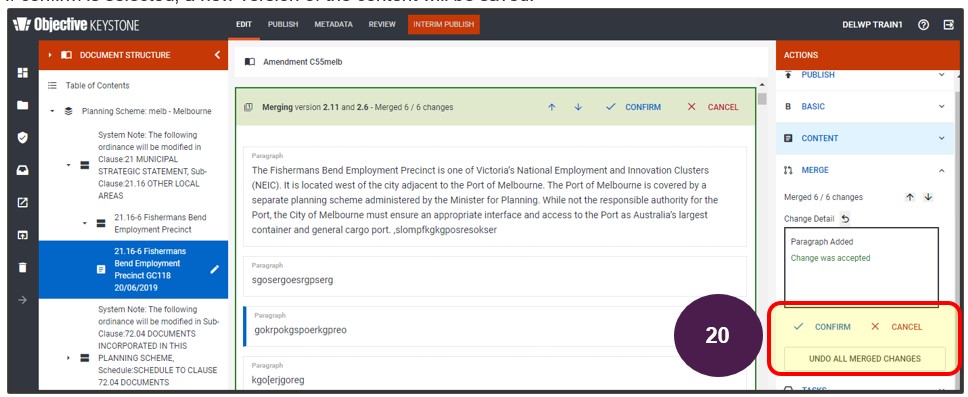
19.You can then choose to ACCEPT ALL OUTSTANDING, REJECT ALL OUTSTANDING or UNDO ALL MERGED CHANGES.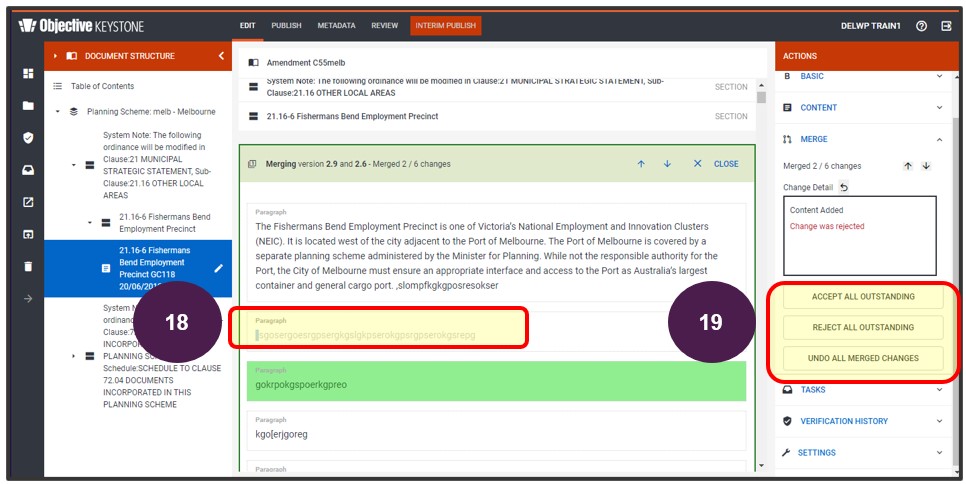 20. Once the outstanding changes have been either accepted or rejected, select to CONFIRM, CANCEL or UNDO ALL MERGED CHANGES to return to the editing screen. If confirm is selected, a new version of the content will be saved.
21. Continue editing the content as required.
View a video on how to publish the amendment document and view the results whilst in the editor screen.
Reminder: The Interim Publish module will need to be used to generate documents for the draft amendment ordinance with the parent provisions. Choose the option to produce PDF comparisons against the master copy to view tracked changes or produce a Word version as well as the PDF. See the Interim Publish section for further details.
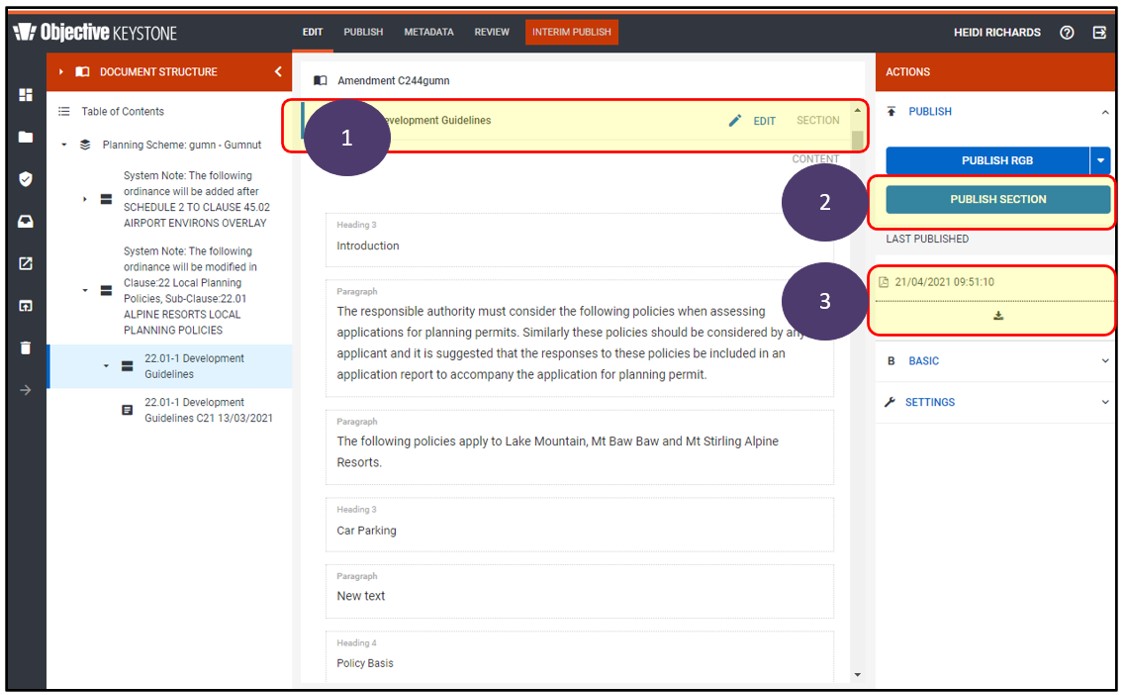
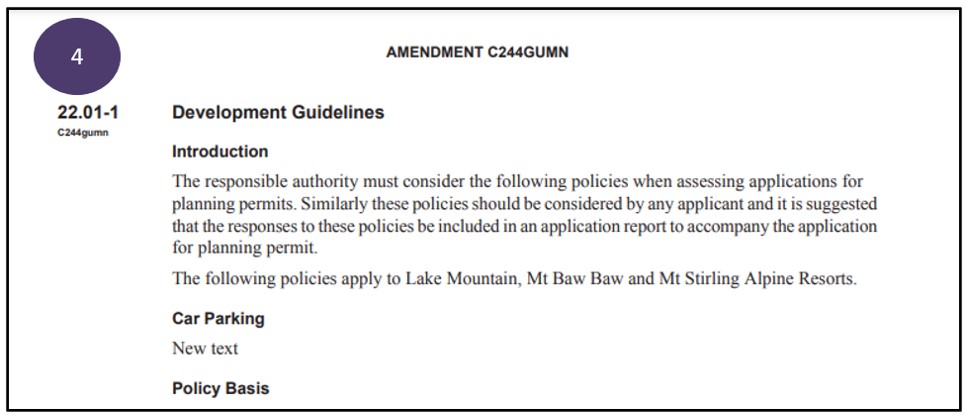
The following shows the steps a user of Amendment Authoring (Keystone) can follow to generate a PDF of one section of an amendment document to quickly view the format in print form, rather than having to view all ordinance instructions (system notes) that have been included in the entire amendment document, or wait for an interim process to complete.
Note: Ensure a Section is selected rather than the Content, in order to use the Publish Section option.
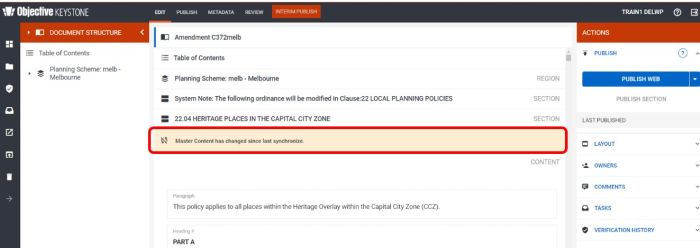
When you are in an amendment document authoring ordinance in Keystone, if you see the message ‘Master Content has changed since last synchronize’ it means there have been changes to the master copy of ordinance and you are not working from the most up to date version from the planning scheme.
If you see this message;
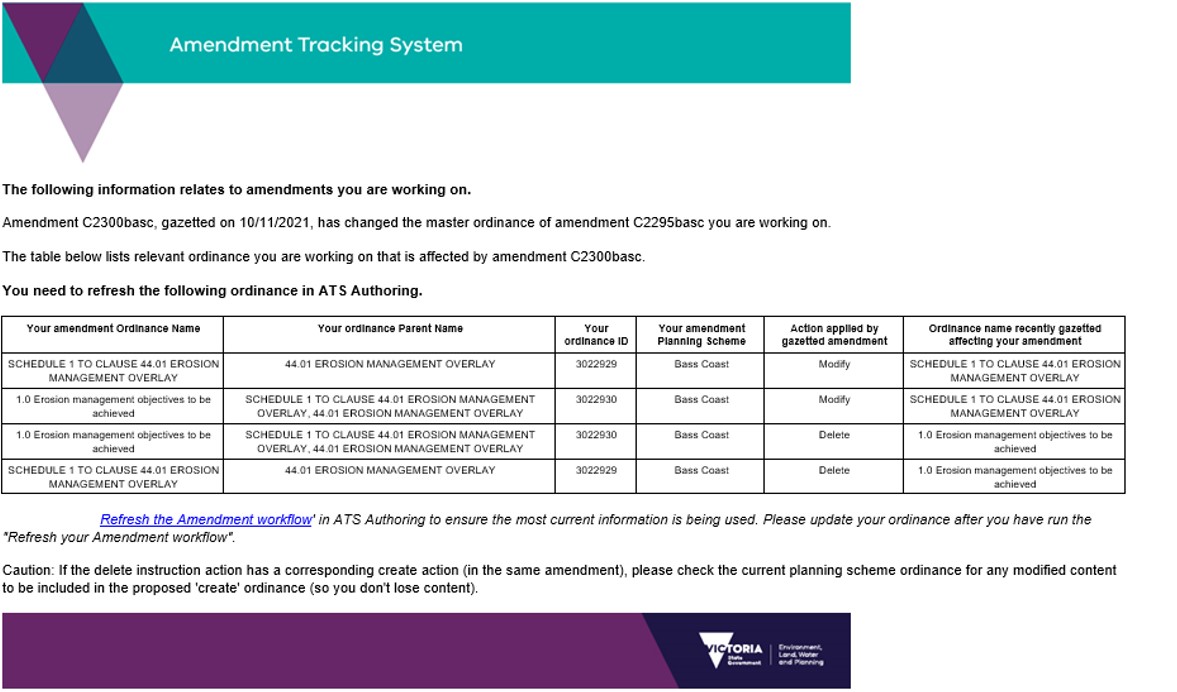
If you are the contact for an amendment, you may have also received an email advising you that your amendment has been affected by the recent gazettal of another amendment. It is important to take note of this email to see what changes have been made to the planning scheme that has affected the amendment you are working on.
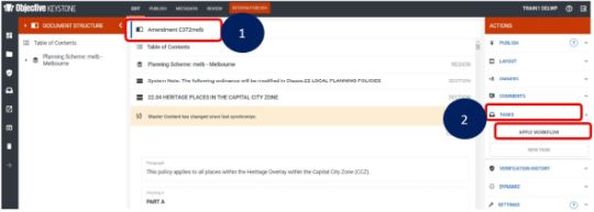
1. With the amendment document open, select the document name. Selecting this will apply the workflow to the entire document but will only affect those sections where the message appears.
2. From the Actions menu, select Tasks and Apply Workflow.
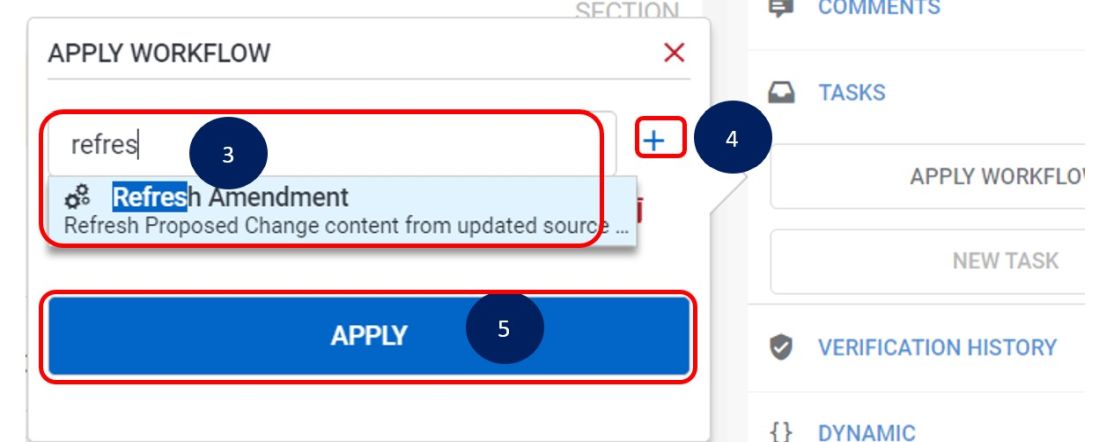
3. Type in ‘Refresh’ into the search box and select ‘Refresh Amendment’.
4. Select the plus (+) sign to add the workflow into the listing.
5. Select Apply.
6. A message will appear very briefly on screen advising that the Workflow has been applied.

7. Reload the web browser tab to see updated content. (Windows users can select F5 of their keyboard).
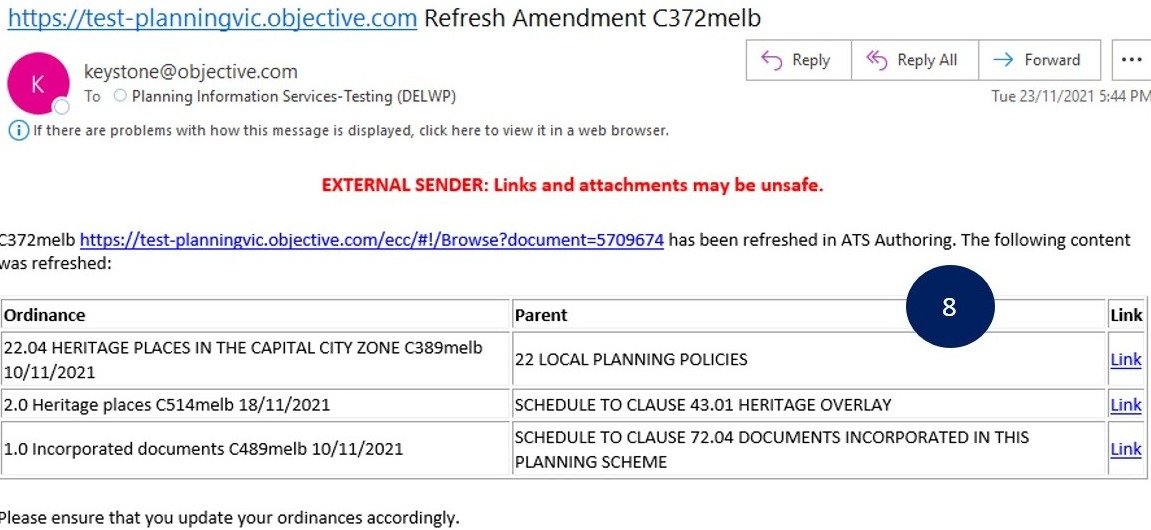
8. Users performing the above actions will receive an email to let them know the refresh has been applied to the document. The email will include a listing of ordinance that has had the content refreshed with a new baseline version.
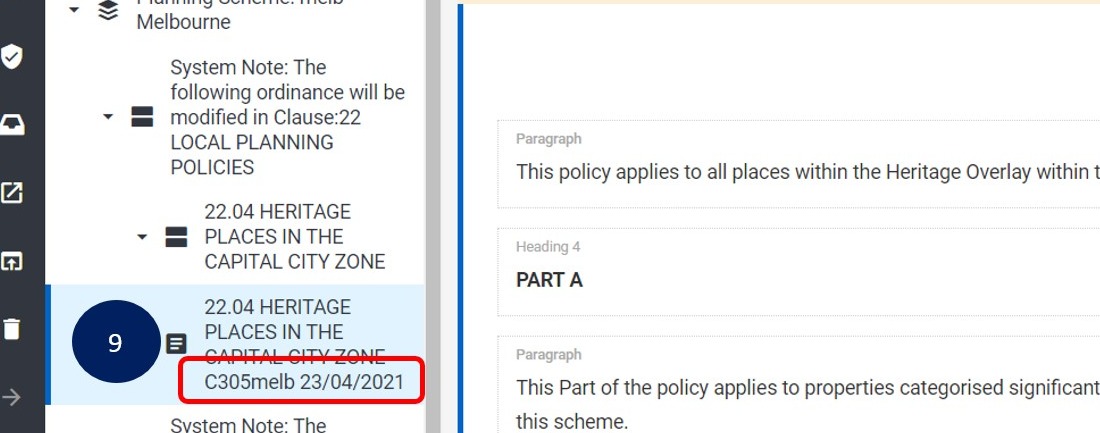
9. Once the process is complete and the web page reloaded, details of the amendment number and gazettal date of the last amendment that made a change to the ordinance will be available.
10. If the amendment includes ordinance that has been deleted by another gazetted amendment, an alert will appear on screen advising you to change your amendment to remove the instruction. (See create or edit an instruction list in ATS Tracking, Remove an item from amendment instruction list). 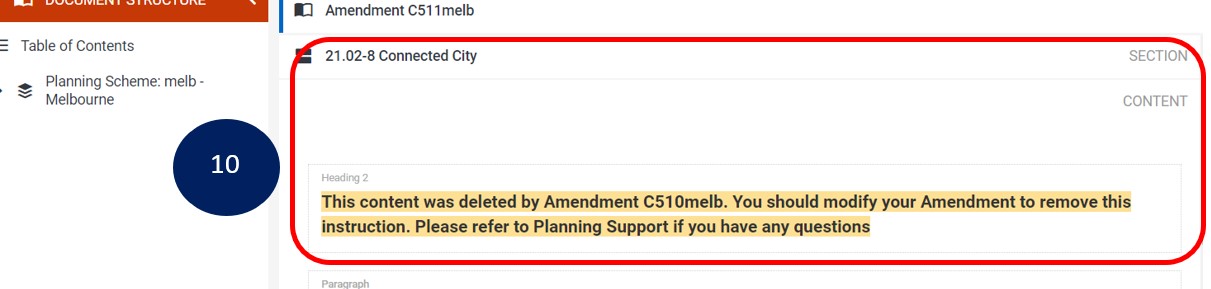
11. Changes made to content prior to performing the refresh process will no longer be visible in the new version however they will have been saved in a previous version. The changes will need to be reinserted into the refreshed content. See the steps outlined in the Review and add comments section above, and how to view saved versions, track changes and merge.
The Amendment Health Check is a workflow feature available from the editor screen in Amendment Authoring (Keystone). It can be run to identify whether an amendment contains any structural issues that may prevent it from being gazetted, such as conflicts with the current ordinance in the Planning Scheme or locked document components. The workflow will also advise if there are sections that require a new baseline version from the master copy of ordinance.
Please note that the Amendment Health Check does not validate the accuracy of planning content within the provision. Consultation with the Department or the relevant Planning Authority is still required.
1. When in the amendment document in Amendment Authoring (Keystone), select the document name, top centre of the screen.
2. Select TASKS from under the Actions menu.
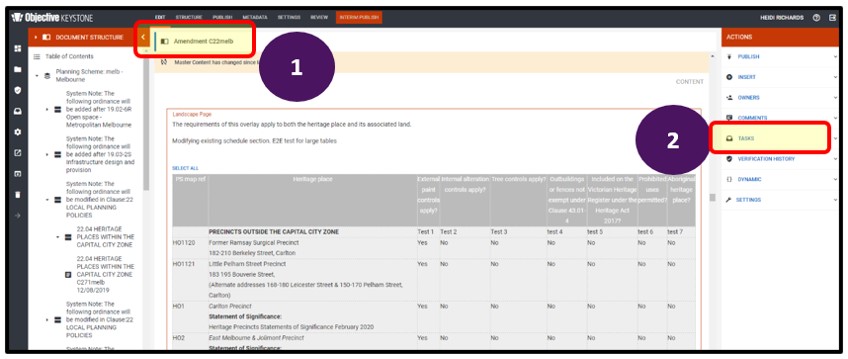
3. Select APPLY WORKFLOW.
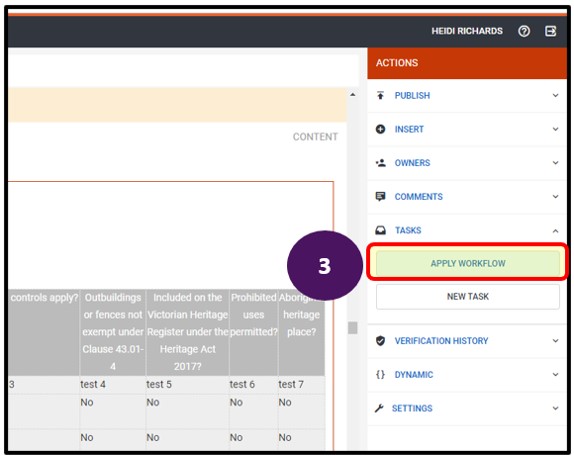
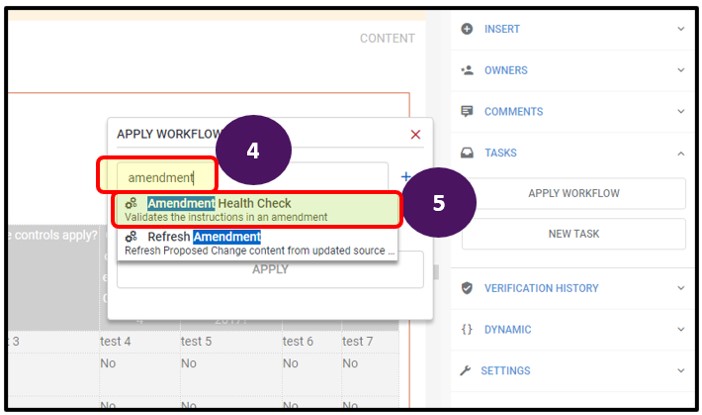
4. Type in ‘amendment’ in the Search workflow field.
5. Select ‘Amendment Health Check’ when it appears in the listing.
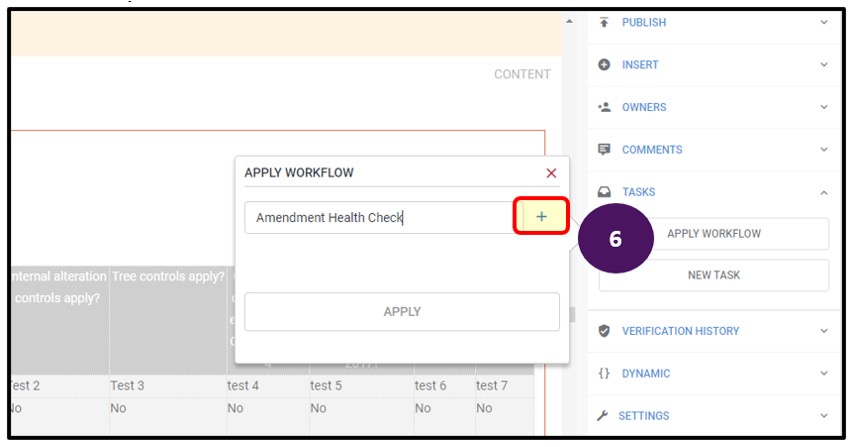
6. Select the ‘+’ symbol to add the workflow.
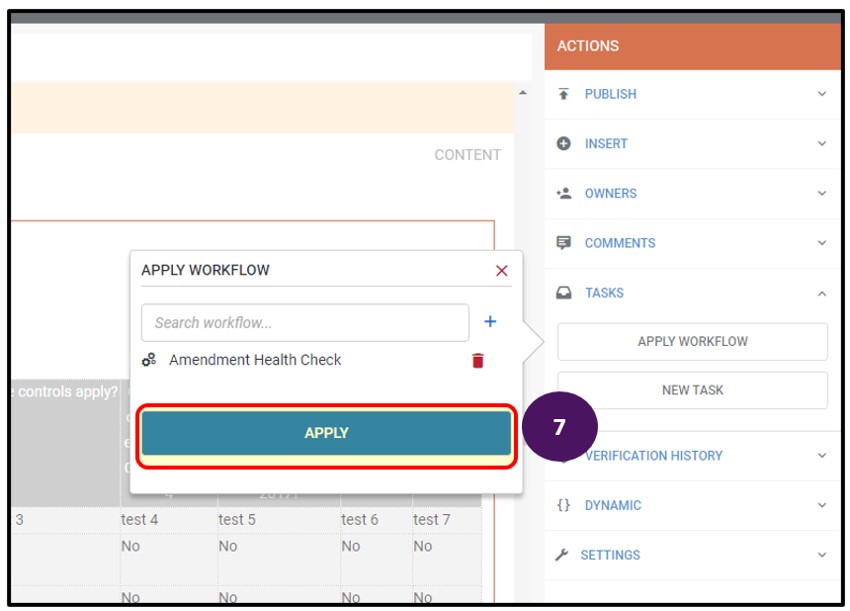
7. Select APPLY to run the workflow on the amendment document.
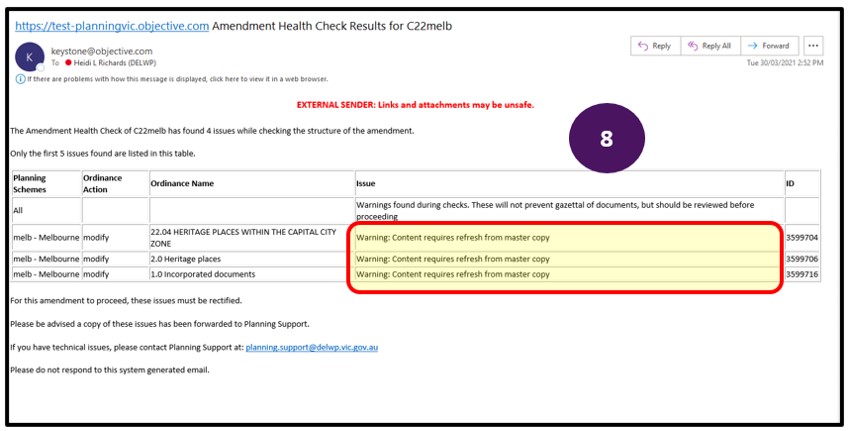
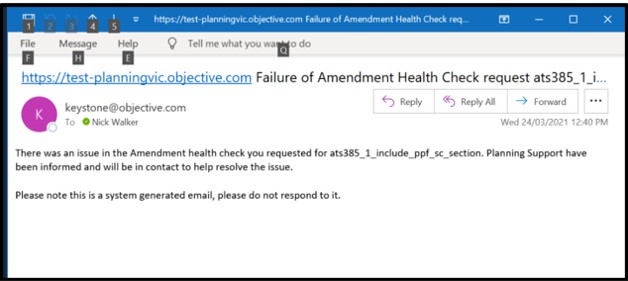
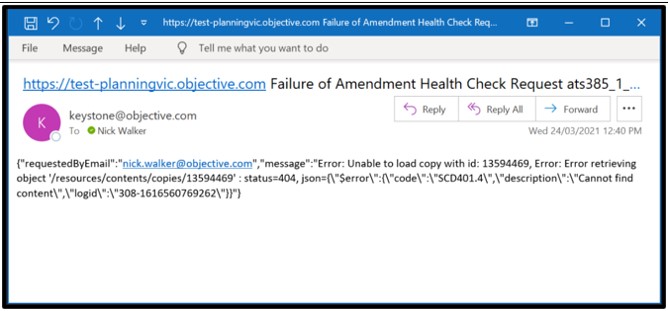
8. The user running the workflow will receive an email advising of the success or fail of the workflow with additional information regarding the results of the workflow.
In the below example, the email is alerting the user that the ‘content requires a refresh from master copy’, meaning that the master content has changed since the document was first created, therefore the user will need to run the Refresh Workflow process. Follow the steps outlined in the above section titled Updating baseline version (Refresh).
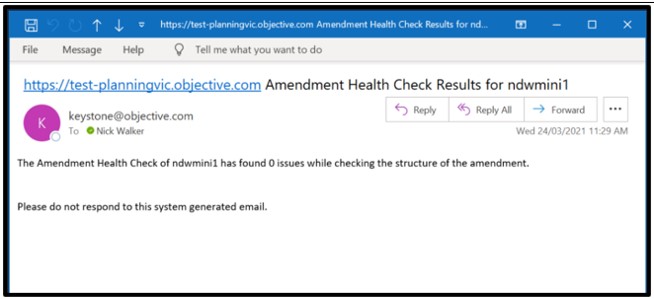
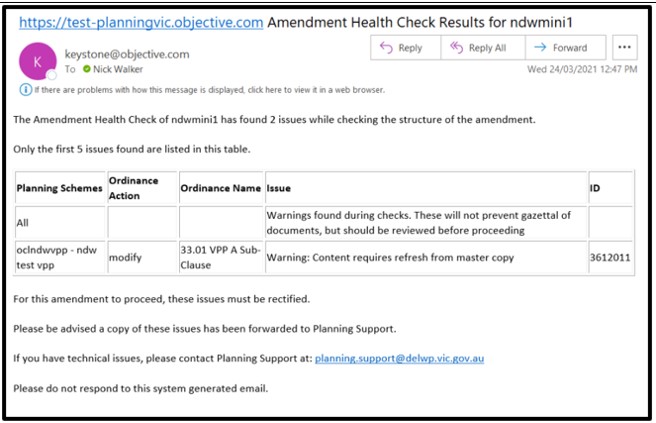
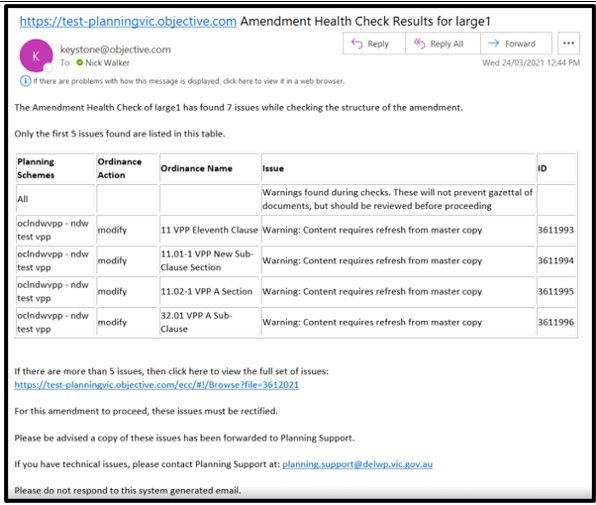
Further examples of other emails received from running the Amendment Health Check Workflow:
The customised Interim Publish capability can be accessed from the editor screen when in an amendment document in Amendment Authoring (Keystone), or directly from a saved URL to the Interim Publish module.
Using the Interim Publish capability will produce a PDF of the draft amendment ordinance, combined with it's parent provisions. For example, if an amendment is modifying schedule section 2.0 Heritage Places, the PDF will display the entire schedule to clause 43.01, displayed in accordance with Ministerial Direction on the Form and Content of Planning Schemes.
When generating documents using the Interim Publish module, users can:
The following sections provides some guidance on how to use the Interim Publish module, compare changes to other saved versions and use the available filter options. It assumes that the user has knowledge of navigating the system.
If the user does not require a document showing tracked changes, they do not need to select the 'Produce PDF Comparisons' option.
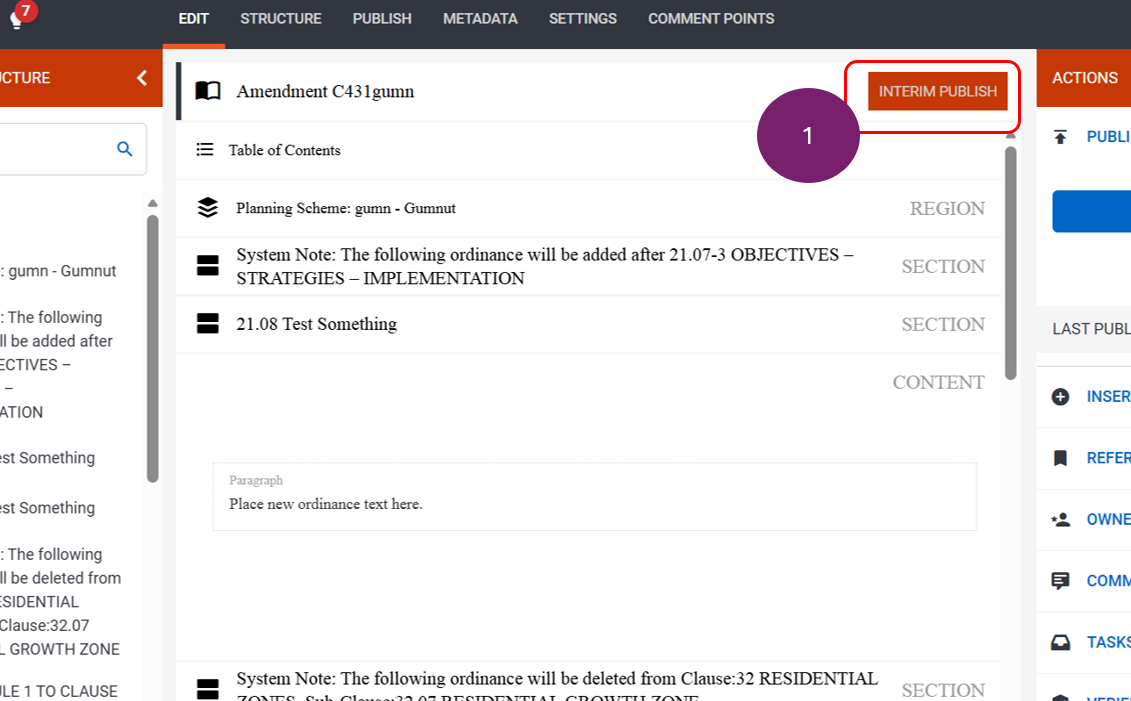
1. Using ATS Authoring (Keystone), whilst in the amendment document, select the Interim Publish button.
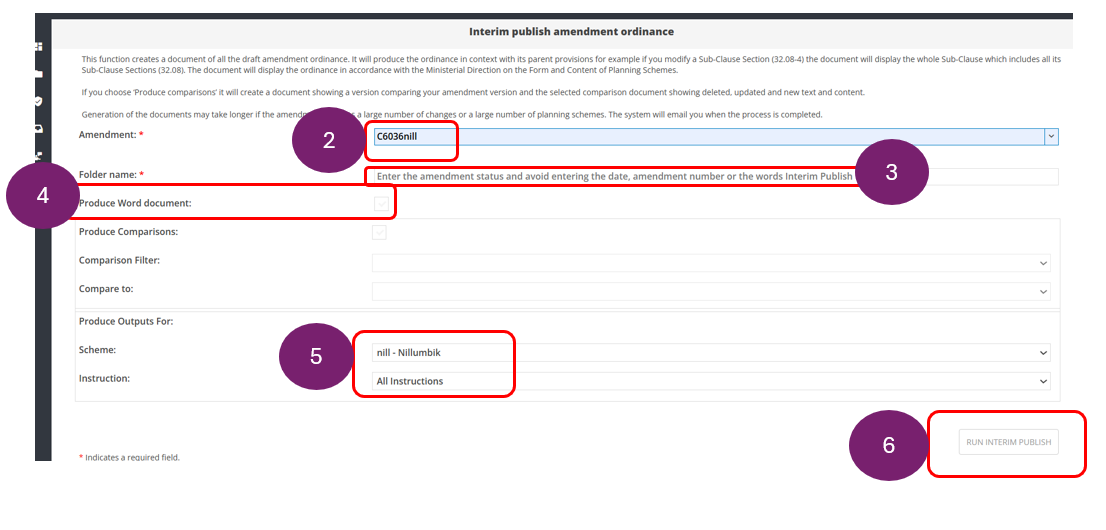
2. The user will be taken to the interim publish screen. The amendment number will default to the amendment that is being worked on. If the amendment number is not appearing, enter the number and select it when listed.
3. Enter a name for the folder. It is recommended to enter the amendment status and avoid entering the date, amendment number or the words Interim Publish.
4. If a Word version is required, check the Produce Word document option.
5. At the ‘Produce Outputs For’ section, leave the default as ‘Entire Amendment’ (if a VC or GC), or the selected scheme.
6. Select the ‘RUN INTERIM PUBLISH’ button which will become available once all mandatory fields have been updated.
7. Select OK to acknowledge the message that the request has been submitted.
8. A reference number will appear showing that the request has been submitted. Do not click on ‘RUN INTERIM PUBLISH’ again, unless the selection criteria is changed to produce a different set of documents.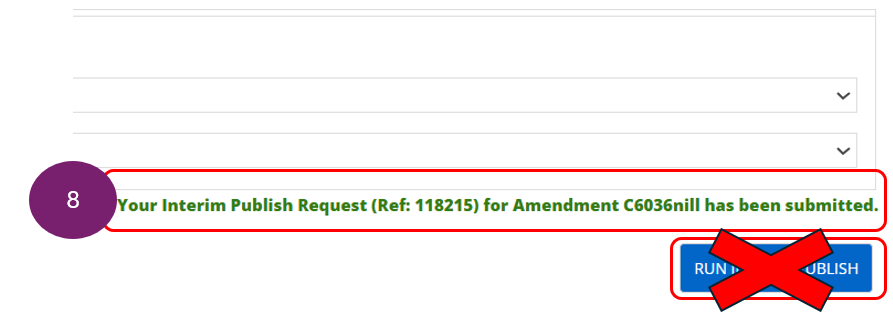
8. If the interim publish is successful, the user who has requested the interim publish will receive an email once the documents are ready. Clicking the URL in the email will direct the user to the interim publish folder. If an email is received advising that the interim publish was unsuccessful, contact the team at planning.support@transport.vic.gov.au for assistance.
If a user wants to view all proposed amendment changes against the master version of the ordinance as it appears in the planning scheme, they should compare against Current Master Content.
Follow the steps outlined above, but before selecting Run Interim Publish, ensure that Produce Comparisons is enabled and set the comparison filter to Baselines so that Current Master Content is displayed.

If a user wants to compare proposed ordinance changes with a version created at an earlier point in time, they can choose to compare against a snapshot - either one they have generated (My Snapshots) or one created by the system.
Follow the steps outlined earlier, but before selecting Run Interim Publish, ensure that Produce Comparisons is enabled, set the comparison filter to the appropriate option, and select the relevant snapshot.
If a user only needs documents for one planning scheme, they can update the Scheme field in the Produce outputs for section.
Once a single scheme is selected, the user can then choose to generate documents for either all ordinance instructions (system notes) or a specific ordinance instruction. This is useful if needing to re-print.
Amendment document – A file in ATS Authoring (Keystone) that is created after ordinance instructions have been saved using the ordinance changes tool in ATS Tracking. It contains the ordinance that is proposed to be changed. The document includes system notes advising what action is occurring for each ordinance, for example, Modify, Delete, Add. Edit the content items in this document to include proposed changes to the selected ordinance.
Content – A section within the amendment document that includes text, images, table or other data that forms the ordinance details being worked on.
Refresh Amendment Workflow – A process that is run after seeing the message ‘Master Content has changed since last synchronize’, where a recent gazettal has made a change to the ordinance. After running the workflow, the content will be refreshed with a copy of the ordinance from the current master and will overwrite any prior changes made to content. Changes will need to be reinserted into the refreshed content.
Version – A saved copy of content at a particular point in time.
Interim Publish - Customised functionality in the Amendment Authoring system (Keystone), when used will generate a PDF of the draft provisions in final form and content, in the context of the whole provision. For example, if the amendment includes the creation of a sub-clause section ‘19.02-1L Infrastructure’, then the entire sub-clause 19.02 and child ordinances will be displayed with the new provision included in the PDF. An option exists for users to produce a Word version as well as the PDF of the document not showing tracked changes.
Master content – The copy of the ordinance as it exists in the planning scheme.
Snapshot - A copy of the amendment document at a given point in time. A snapshot can be generated;
Page last updated: 14/10/26